Thank you for choosing Optima Benefits for your Dental Plan. Below are the steps to either login to your existing account or create a new account and view your dental card.
Step 1: Click here to create and account or login to your existing MetLife account (if you had one previously).
Note: If you didn't have an existing account, you may not need to follow the next steps.
Step 2: Once you've logged in, click on the My Accounts tab at the top.
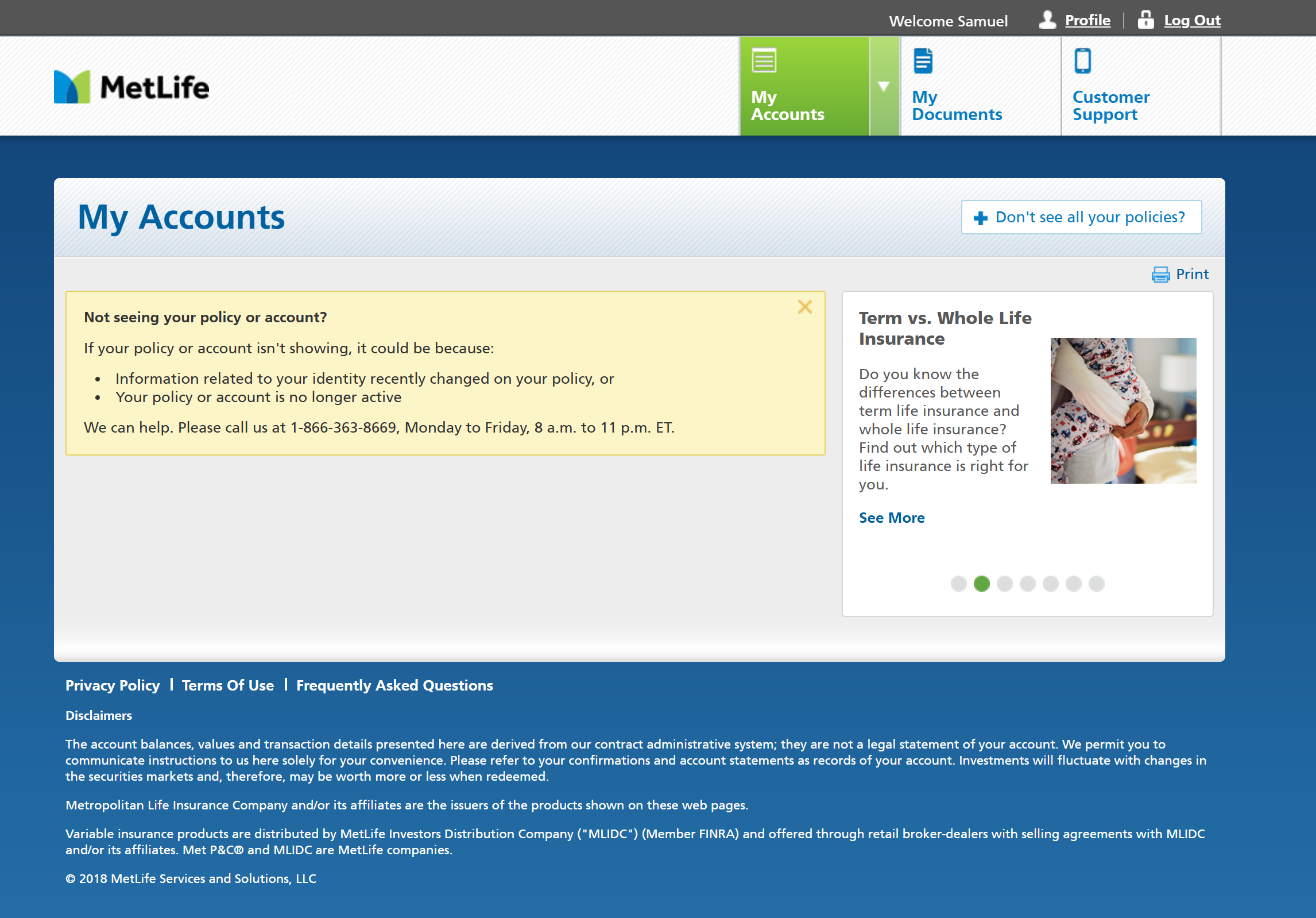
Step 3: Click on the Don't see all your policies? blue link at the bottom.
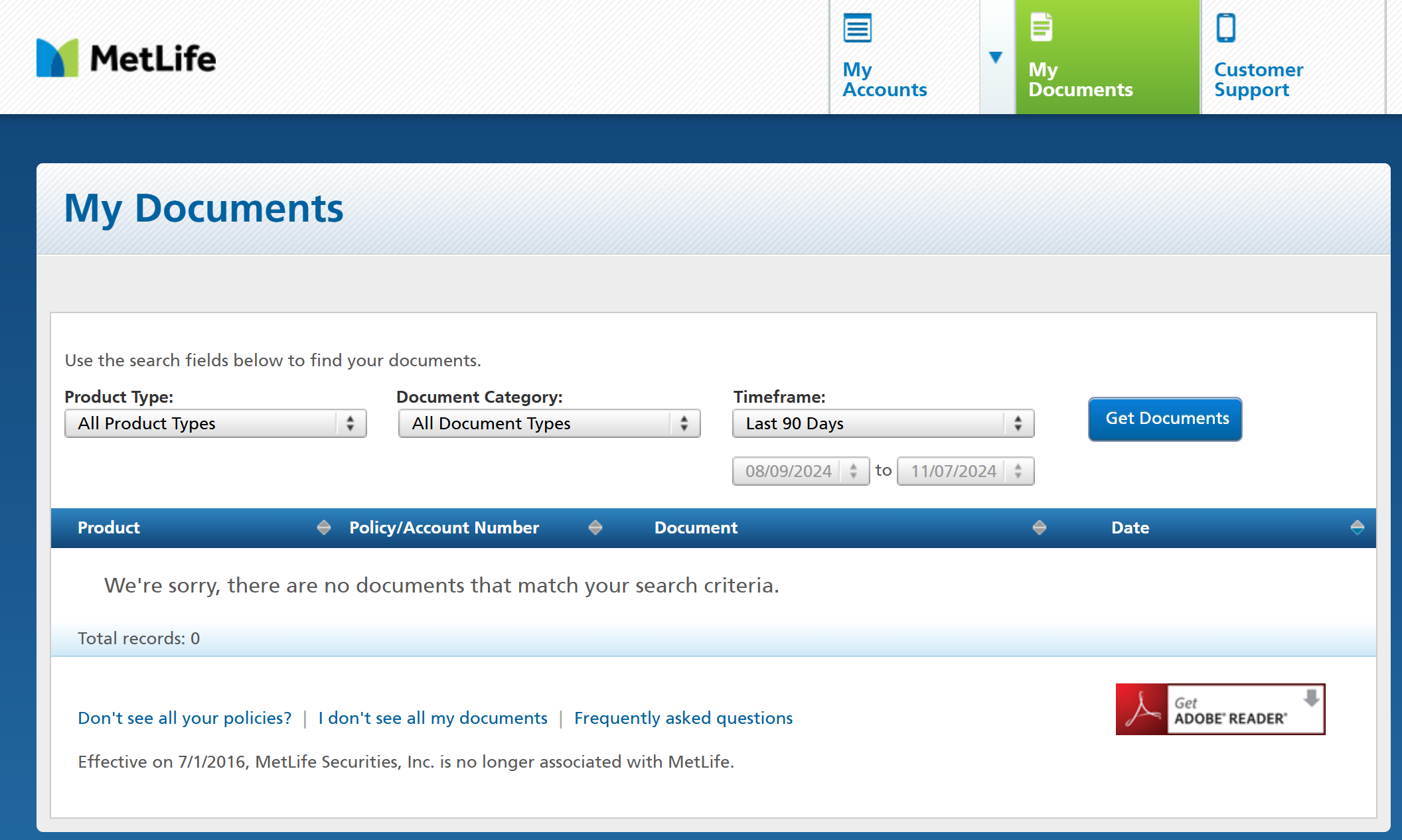
Step 4: In the popup choose the first bullet and then click START VERIFYING.
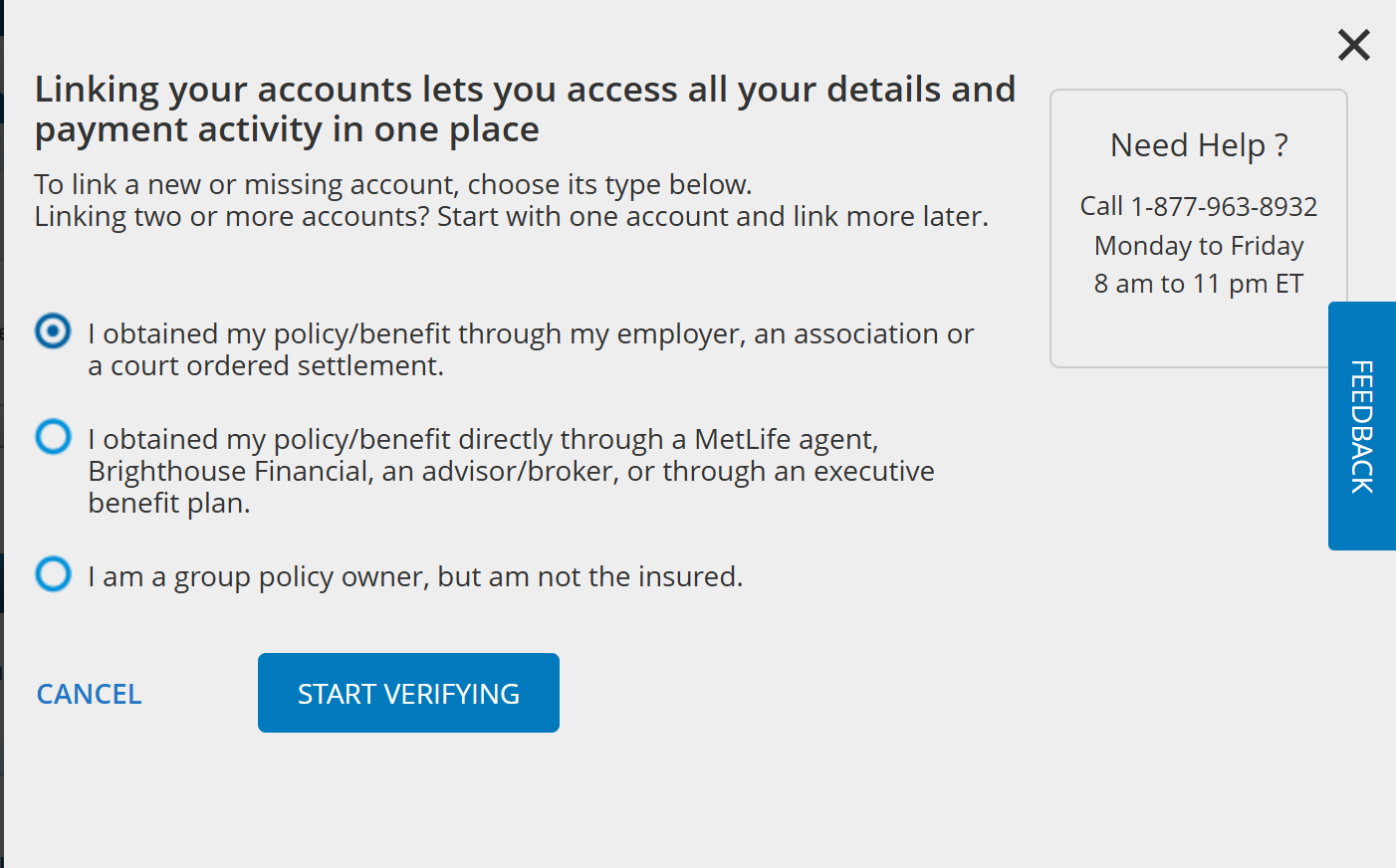
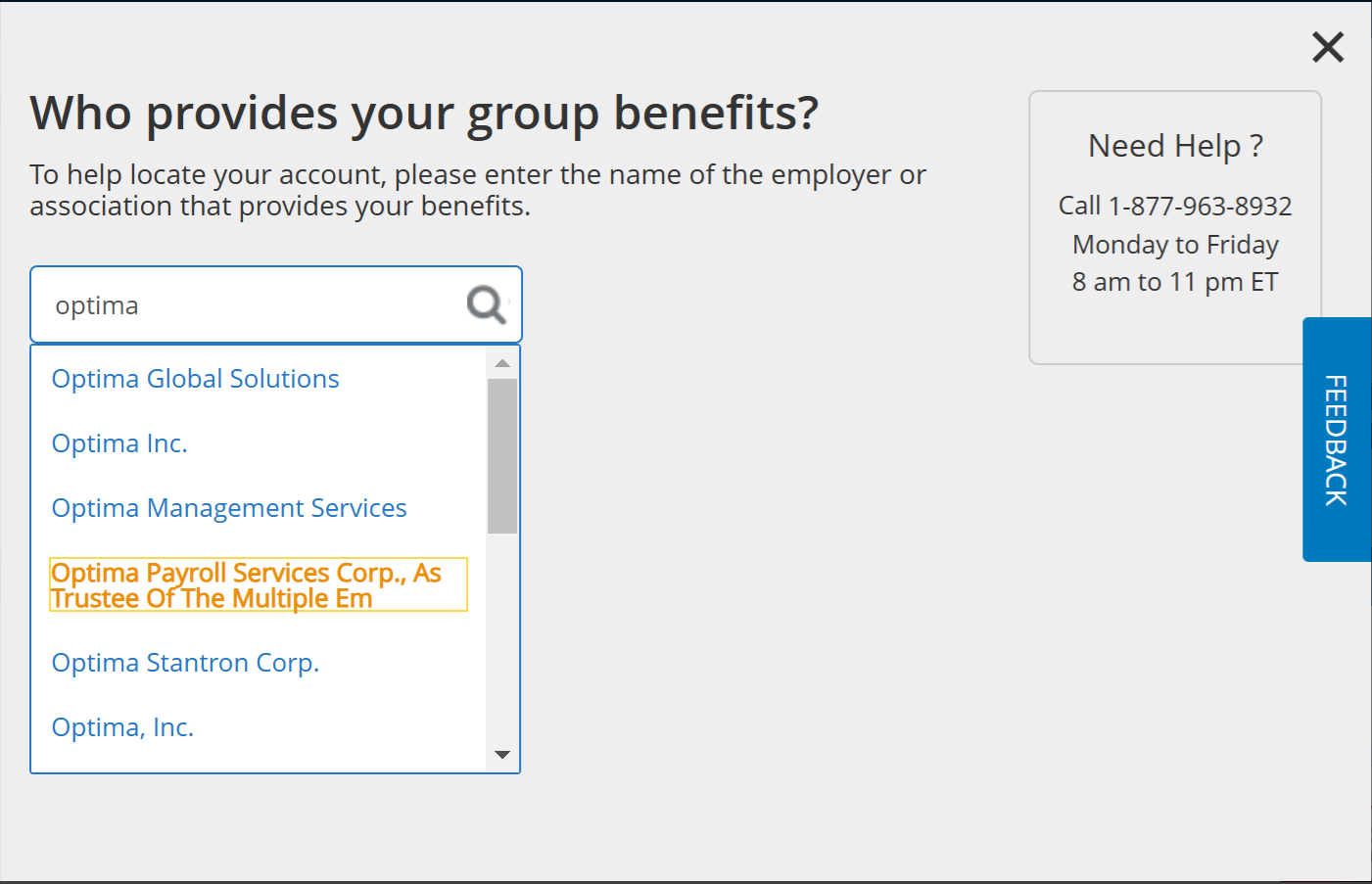
Step 5: On the next screen, start typing optima - you will see Optima Payroll Services Corp., As Trustee Of The Multiple Em... Select this.
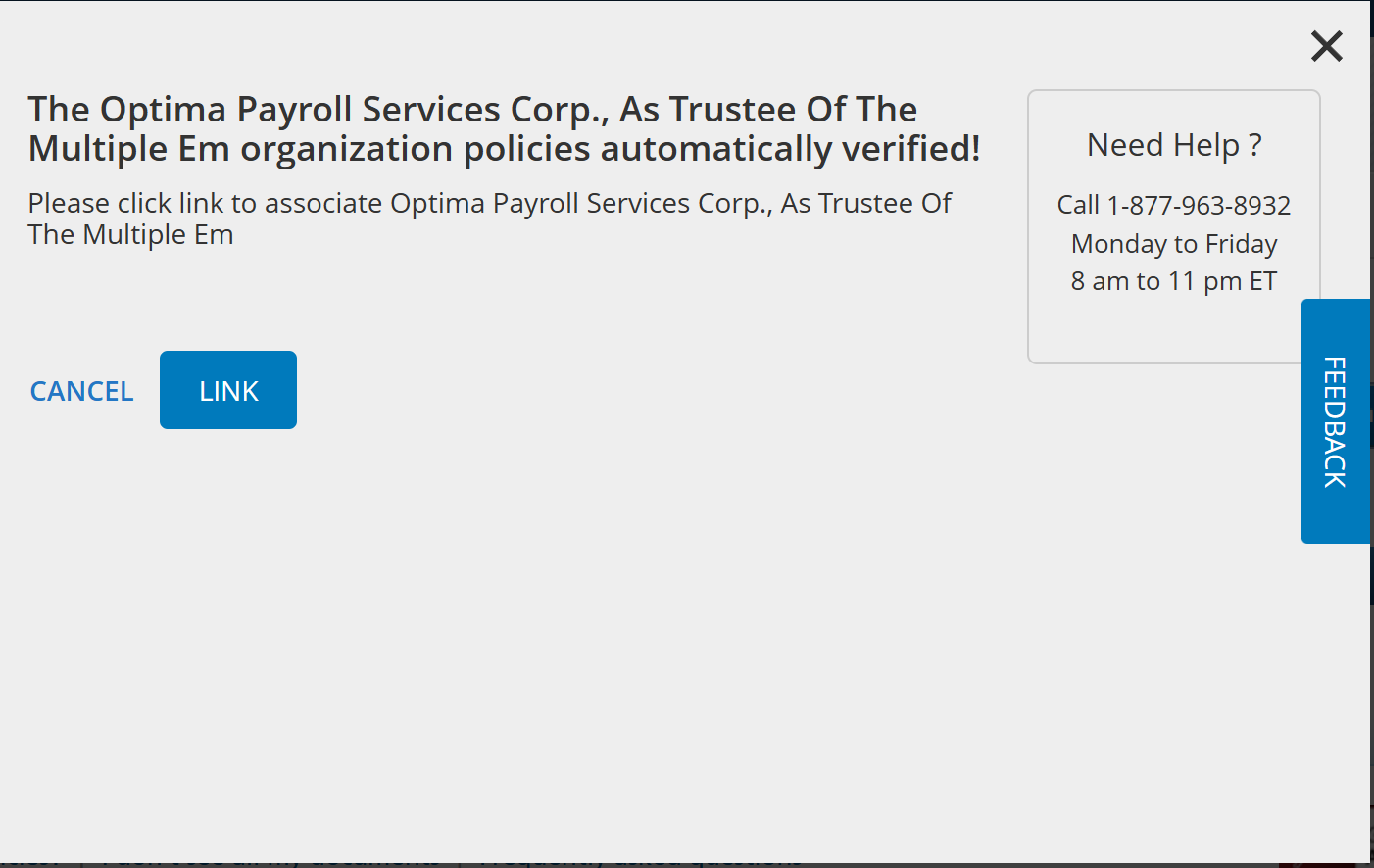
Step 6: The next screen will be a confirmation where you then need to click LINK.
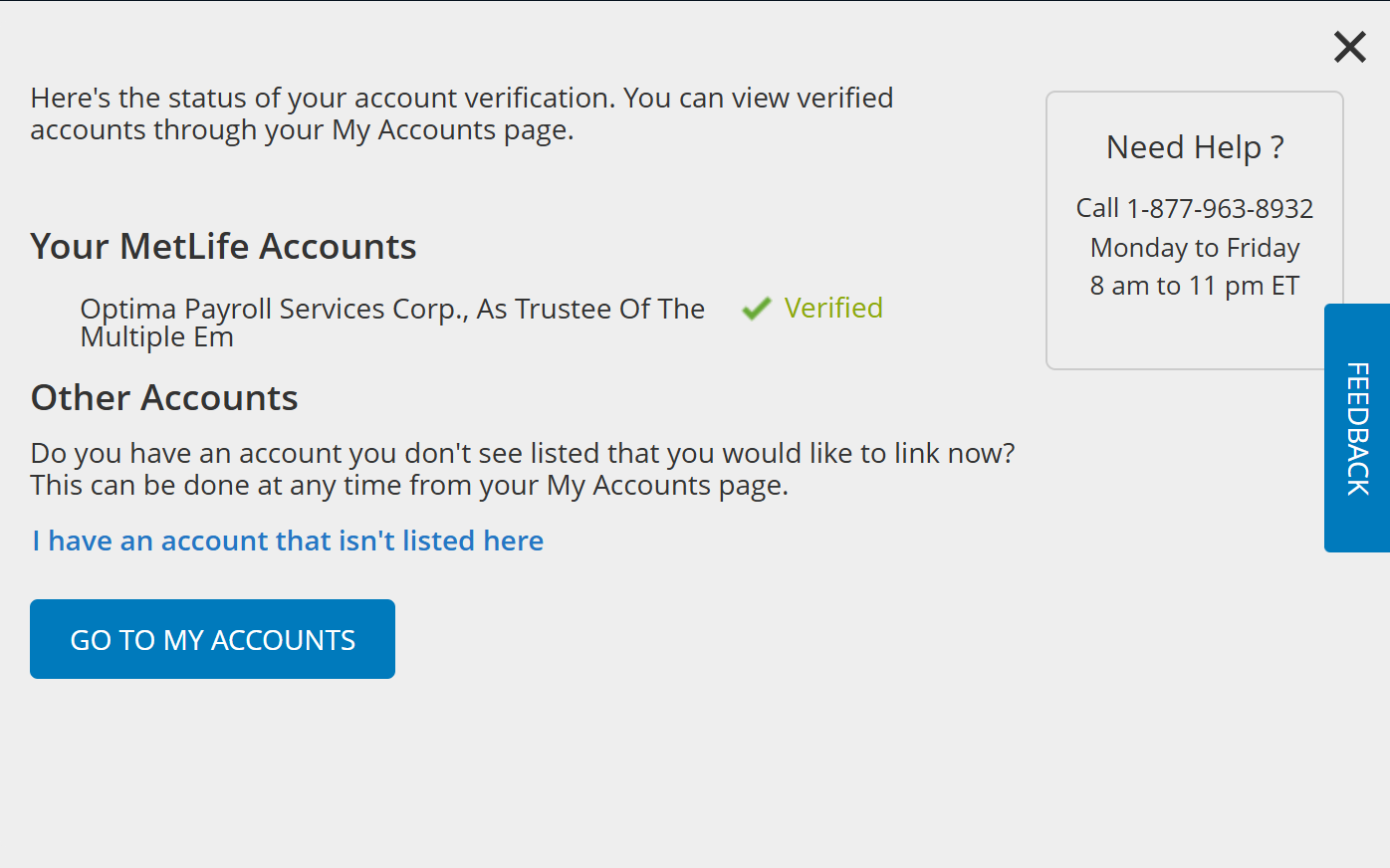
Step 7: The last screen shows confirmation that you are verified. You can now view your account to download or print your card.